
All screenshots
Control panel guide
Standby images
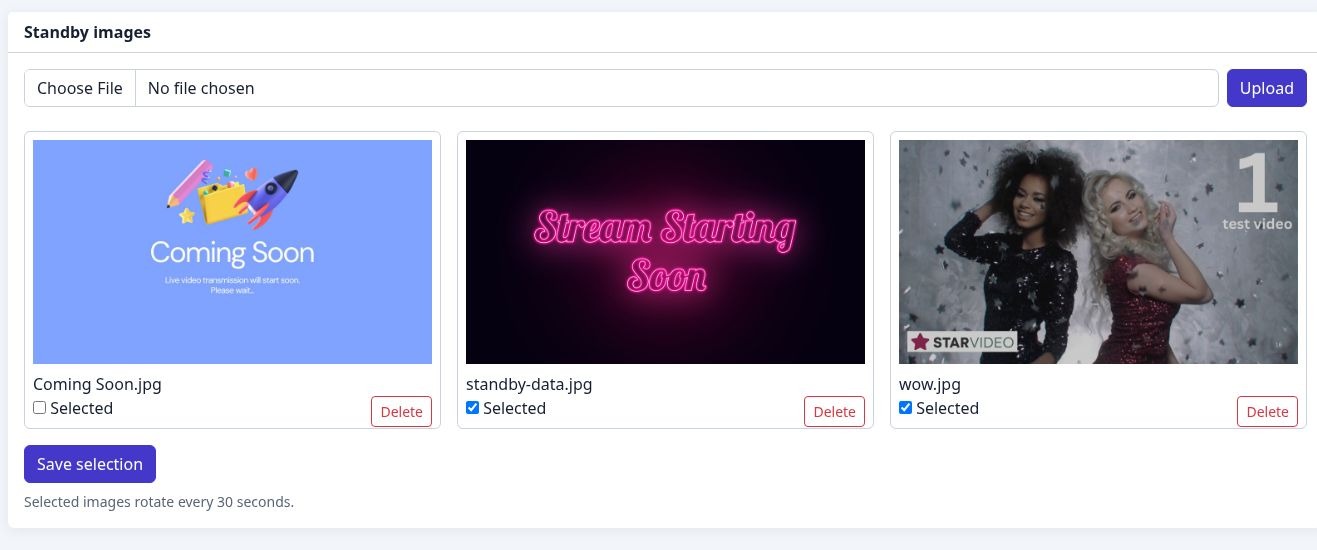
Prepare images for breaks and event start screens. Select a numbered marker to read its explanation.
- 1
Upload an image
Choose an image file, then use Upload to add it to the standby collection.
- 2
Image library
Uploaded images appear as preview cards.
- 3
Select your images
Tick Selected for the images that should be used in the standby sequence.
- 4
Save selection
Save the chosen set. Selected standby images rotate every 30 seconds.